Slack messages through Companion
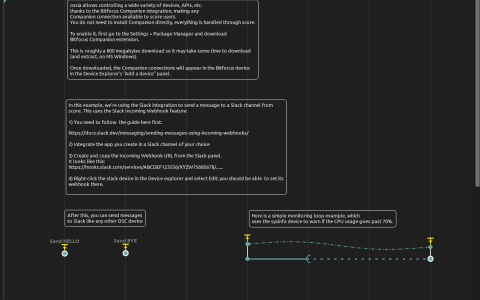
This scenario sends strings to slack:/action/custom/message through the Bitfocus Companion integration. It has no audio or graphics processes. The network operation is a real Slack incoming-webhook request, so choose a test channel before running it.
Configure the connection
- Install the Bitfocus Companion extension from score’s Settings → Package Manager. A separate Companion application is not required for this example.
- Follow Slack’s incoming webhook setup to create an app, authorize a channel and obtain its webhook URL.
- Edit the
slackdevice and configure that URL. Check that its Slack Webhooks module path exists in your installation. The saved path is<LIBRARY>:packages/companion-modules/companion-bundled-modules/slack-webhooks, withmain.js, module identifierslack-webhooksand Node runtimenode22. - Start playback and trigger
Send HELLOorSend BYE. Confirm the corresponding message appears in the selected channel. Keep the webhook URL private when sharing a configured document.
Inspect the monitoring loop
A System info device samples every 1000 ms. The second branch waits on %sysinfo:/cpu/usage% >= 0.75, then sends Warning: CPU load over threshold and returns through a zero-duration interval. The threshold in the saved expression is 75%, despite an annotation that says 70%.
The incoming interval has a minimum duration of about 1.94 seconds and no finite maximum. While load remains high, the loop can send repeated warnings; it is not a one-shot notification. Stop playback or disable that branch when testing only the manual messages. Without the installed Companion module, a valid webhook and network access, the timeline can be inspected but cannot deliver Slack messages.