Custom UIs
It is possible to create custom control UIs for a given ossia score through QML and QtQuick, a GPU-accelerated UI language part of Qt.
Use a custom application UI for an installation, or give an individual Javascript process its own control interface. QML interfaces can use the editor API, Qt Quick Controls and score port bindings without putting editor operations in execution callbacks.
It is recommended to be familiar with QML, Qt Quick (for instance by going through the QML Book) and ossia score’s scripting before making your own UI.
UI objects
Import Score.UI (for example import Score.UI as UI) for the following QML types. For editor operations, import Score as Score provides Score.Editor; this avoids confusing the Score QML module with the console’s global object.
-
Score.UI.PortSourcereads execution updates from a control inlet and writes UI changes to its value. Live updates require playback. Identify the process by scripting name and the port by name or index, or pass the port object directly. These bindings set values directly; useScore.Editor.editValue/commitEditif the UI gesture must become an undoable editor command. -
Score.UI.PortSinkallows to read and write output controls from the score. If read, the displayed value will be the current execution value, thus the score has to play. -
Score.UI.AddressSourceallows to read and write addresses from the device explorer.
Running with a custom UI
A whole-application UI can be passed as a command-line argument:
$ ./score --ui path/to/my/ui.qml path/to/my/document.score
Per-process interfaces and placement
A file-backed Javascript process can pair effect.qml (a Script) with effect.ui.qml (a ScriptUI). The .ui.qml companion is not a separate process-library entry. Edit code and UI independently in the script editor; the process’s custom-UI action opens the interface.
import QtQuick
import QtQuick.Controls as QQC
import Score as Score
import Score.UI as UI

Score.ScriptUI {
  id: root
  width: 320
  height: 100
  QQC.Slider {
    anchors.centerIn: parent
    from: 0
    to: 1
    UI.PortSource on value { port: root.inlet(0) }
  }
}
This companion assumes the process has a numeric control inlet at index 0. ScriptUI.inlet(indexOrName) and outlet(indexOrName) resolve that process’s own ports; PortSource and PortSink also accept port objects rather than a process name and port index.
Custom UIs and script editors can each open in a Window, Side panel or Central area. The editor API exposes setProcessUIPlacement(process, placement) and setProcessScriptEditorPlacement(process, placement), followed by showProcessUI(process, true) or showProcessScriptEditor(process, true). An empty placement string uses the preference default. See View and interface API.
Messages and persistent state
ScriptUI.executionSend(value) sends a message to the Script.uiEvent callback. In the other direction, Script.uiSend(value) reaches ScriptUI.executionEvent. These are message bridges between separate objects/threads, not shared QML properties.
For persisted UI state, bracket a gesture with beginUpdateState(name), updateState(key, value) and endUpdateState(); cancelUpdateState() cancels it. replaceState(value) and clearState() replace or clear the state. Both Script and ScriptUI provide loadState and stateUpdated callbacks. An execution script can emit commitState(key, value) to queue an undoable state change even when no custom UI is open. This persisted state is included in the document and JavaScript presets.
Imported QML forms
Where the build includes imported-UI support, import Score.ImportedUi provides ImportedUi. It hosts trusted QML in its own engine and scales an exported content form to fit. Choose an Item-based .qml / .ui.qml file with positive width/height or implicit dimensions, not the project’s Window or ApplicationWindow bootstrap. Required Qt modules must be installed; add project module directories with importPaths.
import QtQuick
import Score.ImportedUi

ImportedUi {
  width: 640
  height: 480
  source: Qt.resolvedUrl("Panel.ui.qml")
  mapping: [
    { name: "level", object: "levelSlider", property: "value", direction: "both" }
  ]
  values: ({ level: 0.5 })
  onEvent: function(name, value) { console.log(name, value) }
}
Here the imported form must expose levelSlider as a public root object alias or a unique objectName; a private QML id is not enough. A mapping has a unique name, an object ("." means the root), and direction: input, output, both or event. Property mappings use property; event mappings can name a signal. Inputs arrive through the values map; outputs emit event(name, value). Inspect status, errorString, designSize and objects to diagnose a missing module, invalid root or mapping, and use reload() after changing the form. This is an integration mechanism, not a sandbox.
Graphics and texture previews
Use ordinary Qt Quick Controls for visual sliders, buttons and text fields. Score’s FloatSlider, FloatKnob, range, XY/XYZ, HSVSlider, MultiSlider and chooser types instead declare native process controls in a Script; they are not visual children to place in a custom layout. Qualify imports to avoid collisions such as Score.Button and QtQuick.Controls.Button.
Qt Quick Canvas with getContext("2d") can paint inside a TextureOutlet, alongside other QML graphics. Request repaint with requestPaint() when changing drawing data. The output must reach a graphical sink and execution must be running. A Canvas is not a new score process type.
Score.UI.TextureSource displays an existing process texture in a custom UI:
UI.TextureSource {
  width: 320
  height: 180
  process: "My shader"
  port: 0
}
The process and texture outlet must exist, and GPU JavaScript support must be compiled in. This is a preview/source for QML, unlike Score.TextureInlet, which declares a cabled texture input inside a Javascript process. See Texture Inlet in Qt Quick 3D.
Basic example
This example will create a basic UI which interoperates with the following score: download it here.
Save the content of the QML file below as custom-ui.qml and run with:
$ ./score --ui custom-ui.qml custom-ui.score
You should see the following display:
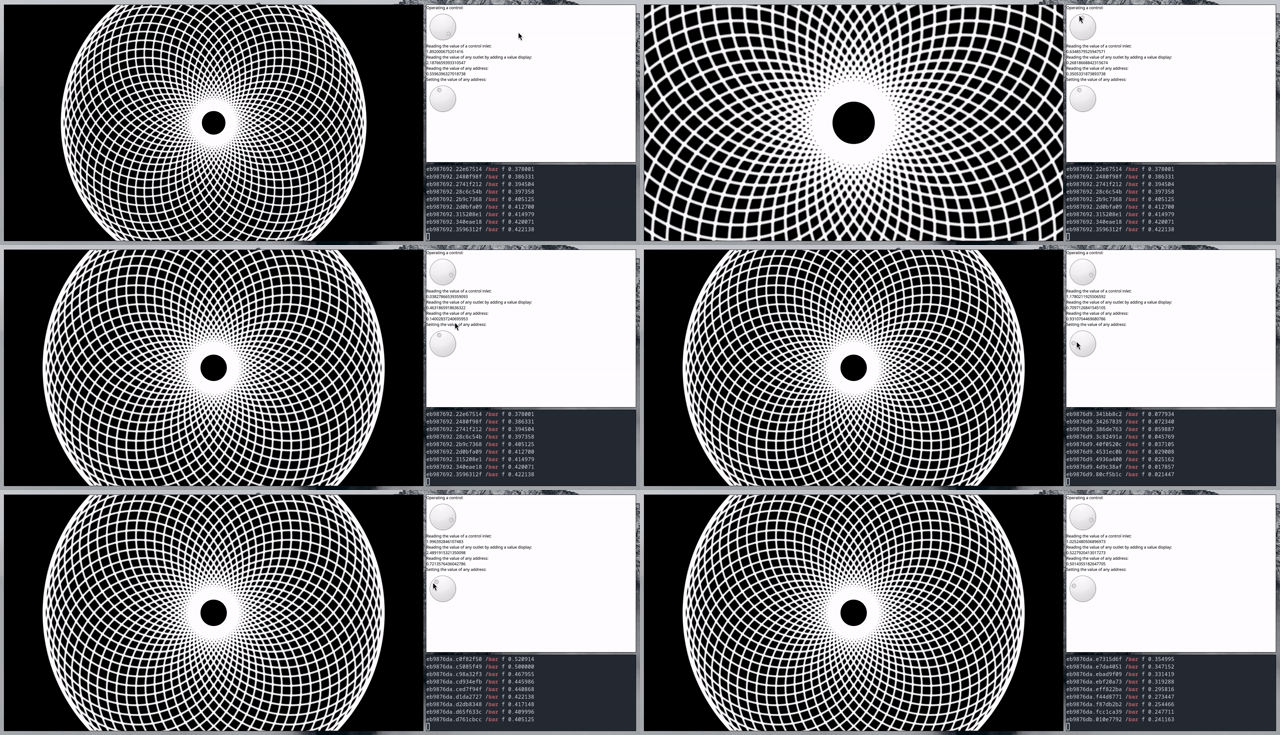
The first dial controls a parameter of an ISF shader. The last dial sends messages to the OSC address /bar on port 9996.
import QtQuick
import QtQuick.Controls
import Score.UI as UI

Rectangle {
  color: "white"
  width: 640
  height: 480
  Component.onCompleted: Score.play();

  Column {
    Label { text: "Operating a control:" }
    Dial {
      UI.PortSource on value {
        process: "52.39"
        port: 1
      }
    }

    Label { text: "Reading the value of a control inlet:" }
    Label {
      UI.PortSource on text {
          process: "LFO"
          port: "Ampl."
      }
    }

    Label { text: "Reading the value of any outlet by adding a value display:" }
    Label {
      UI.PortSource on text {
          process: "Value display"
          port: 0
      }
    }

    Label { text: "Reading the value of any address:" }
    Label {
      UI.AddressSource on text {
          address: "OSC:/foo"
          sendUpdates: false
      }
    }

    Label { text: "Setting the value of any address:" }
    Dial {
      UI.AddressSource on value {
          address: "OSC:/bar"
          receiveUpdates: false
      }
    }
  }
}