Recording sensor messages and automations
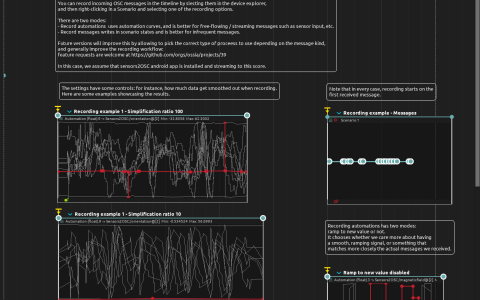
The document contains recorded Sensors2OSC data rather than an audio recording. Three groups store accelerometer, gyroscope and orientation components as nine float automations each. Their labels identify simplification ratios 3, 10 and 100: the saved ratio-100 curves retain hundreds of segments, while ratio 3 has much sparser curves.
Two further groups compare magnetic-field recordings with Ramp to new value enabled and disabled. A nested Recording example - Messages scenario stores touch messages in individual states instead of curves, including [0, -1, -1] release values.
Inspect and replay
Start playback, then trigger one group’s start. These groups have independent interactive starts; their placement around 2 or 12 seconds does not start them automatically. Compare the curves at the same zoom level. Play only one group writing a given address at a time to avoid simultaneous outputs obscuring the comparison.
The automations target individual vector components, for example Sensors2OSC:/accelerometer@[0]. The device has /orientation, /gyroscope, /accelerometer, /magneticfield and /touch, all three-component values. Playback sends to the configured OSC destination, saved as 127.0.0.1:9996; an OSC receiver there can show the replayed values. There is no audio or rendered image in this example.
Record your own input
- Install Sensors2OSC on an Android phone and put it on a network reachable from the computer.
- Set the phone’s destination to the computer’s address, UDP port 9997. The score device listens on
0.0.0.0:9997; allow that traffic through the firewall. - Select the incoming addresses in the Device explorer. Right-click in a Scenario and choose Record automations for continuous sensors or Record messages for discrete events.
- Send sensor data: recording starts on the first received message. Stop recording and inspect the resulting curves or states.
The saved recordings can be inspected without a phone. Only making a new live recording requires the app and network input.