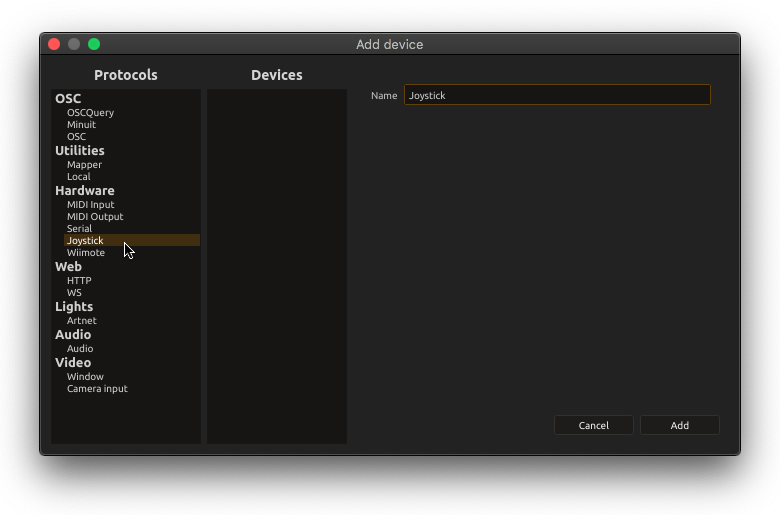
Joystick device
The Joystick device exposes game controllers through SDL. Use it to map buttons, sticks or supported motion sensors to score parameters; compatible gamepads may also provide rumble outputs.
Connect a controller
- Connect the controller to the operating system.
- Choose Add device → Joystick in the Device explorer.
- Choose a detected controller, or the Default entry to use the first controller not already opened by score.
- Review Name and Gamepad API, then add the device.
The picker rescans while the dialog is open. In a web browser, press a button or move an axis first: browsers do not expose an untouched controller to the page.
Gamepad API requests SDL’s standardized game-controller mapping and additional features. score falls back to the generic joystick interface if opening the gamepad interface fails. Controller model, SDL mapping, operating system and browser determine which features are available.
Address trees
With the generic joystick interface, read-only addresses use one-based names:
| Address | Value |
|---|---|
Joystick:/axis-1 |
Float axis value in [-1, 1]. |
Joystick:/button-1 |
Boolean button state. |
Joystick:/hat-1 |
Two-component directional-hat value. |
The number of entries follows the hardware. With Gamepad API, names instead describe functions, for example stick/left/x, trigger/right, button/a and dpad/up. Sticks use [-1, 1]; triggers use [0, 1].
Supported sensors appear under sensor, and supported touchpads under touchpad. Do not assume that every gamepad provides these nodes or that generic joystick and gamepad address paths are interchangeable.
Rumble
When supported, rumble/main/low_frequency and rumble/main/high_frequency set motor strengths in [0, 1]. Set those values first, then write rumble/main/duration in milliseconds to start the rumble. Devices with trigger rumble similarly expose rumble/triggers/left, right and duration. Changing a strength alone does not start playback of the effect.
Reusing a project
A named device selection tries to resolve the saved controller identity on reload. A default device intentionally selects available hardware rather than guaranteeing a particular physical unit. For installations with several controllers, check identities and addresses on the target machine. If a controller is missing, reconnect it and use Reconnect while playback is stopped.
Use a Mapper device to rescale axes, combine controls, or give controller-specific addresses stable names within a project.