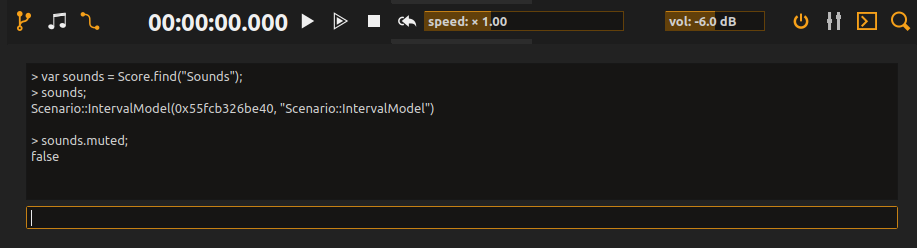
Console panel
Open the console with Ctrl+Shift+C(Win / Linux) or⌘+Shift+C(Mac). Enter JavaScript in the input line and press Enter to evaluate it in the application context. Results appear above the prompt; evaluation errors are shown with ERROR:. The console can inspect and edit the current document, not just calculate values.
var selected = Score.selectedObject();
if (selected) console.log(Score.path(selected));
console.log(Score.documentName());
Completion and history
The prompt offers completion for Score, Util and Device; Ctrl+Space requests completion. Up and Down browse command history, which is saved across application restarts.
| Shortcut in the input line | Action |
|---|---|
| Ctrl+A / Ctrl+E | Move to start / end. |
| Ctrl+B / Ctrl+F | Move backward / forward one character. |
| Ctrl+U | Clear the line. |
| Ctrl+K | Delete from cursor to end. |
| Ctrl+W | Delete the previous word. |
| Ctrl+T | Transpose neighboring characters. |
Editing safely
Use Score.withMacro(function() { ... }) to group document changes into one undo step; inspect Score.canUndo() and Score.undoText() before undoing. Device writes, filesystem operations and shell commands are not automatically undoable. Console scripts have the application’s permissions: paste only trusted code.
See Scripting for library scripts, startup scripts and menu actions, and the editor scripting reference for Score, Util, View, devices and protocols. The Javascript process uses a separate execution engine, so a console variable is not automatically available in its tick. The JavaScript/QML language overview explains the runtime differences.