Face landmarks and radial blur
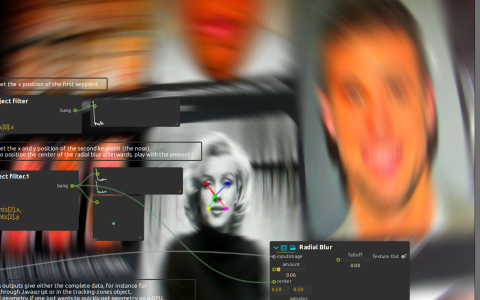
Use RetinaFace detections to inspect facial keypoints and position a video effect.
Requirements and setup
This document’s name is pose-detection, but its saved model is RetinaFace 5-kpt: face boxes and five facial landmarks, not a full-body skeleton. Install score’s ONNX/Pose Detector support and the LivePose model pack in your score user library, then restart score. Select the model matching packages/pose-detector/detectors/det-face-retinaface-mobile.onnx, or update Landmark Model to its actual extracted location. GPU inference additionally depends on the acceleration libraries supported by your score build; model installation alone does not provide those libraries.
Select a working camera for Camera:/, start playback, and face the camera. The annotated detector texture passes through Radial Blur to Window:/. The Value displays expose Detection, Geometry, Poses, Poses Geometry and Count separately, so you can distinguish one detection from the collection of detections.
Follow the keypoints
One Object filter selects .keypoints[0].x for a Signal display. The other produces [.keypoints[2].x, 1 - .keypoints[2].y]: the third, zero-indexed facial landmark (the nose) with its vertical coordinate flipped. It feeds Point2D View and the radial blur’s center.
Move your head and increase Radial Blur’s amount from the saved 0.06 to make the center movement apparent. If the texture appears but values do not change, check the model path and detection count before editing the downstream filters. The Object filter process requires the Jk data-query add-on.